I ran into a strange KDE Plasma problem after waking my desktop from sleep.
The second monitor came back normally after system resume. Wallpaper was there. Widgets were there. Mouse pointer moved normally.
But I could not click the desktop widgets or right-click the wallpaper for the desktop context menu on that monitor.
Applications were still usable. But only if I click them on the application panel.
My setup when this happened:
- Fedora Linux 44
- KDE Plasma 6.7.4
- Wayland
- NVIDIA RTX 3080 Ti
- NVIDIA Open Kernel Module 610.57.04
- Two monitors
- Affected monitor connected with DisplayPort 1.4
This does not look like a fedora only problem. The workaround is using KDE’s own kscreen-doctor, so it should also be useful on other KDE Plasma Wayland distributions where the same display state problem happens after suspend.
What I tried first
Restarting Plasma did not fix it:
systemctl --user restart plasma-plasmashell.serviceI also tried:
plasmashell --replaceStill no change.
I even tested with LACT stopped before suspend because I noticed NVIDIA DRM activity in the logs:
sudo systemctl stop lactdThe problem still happened after system resume.
So LACT was not required nor responsible for this problem to happen.
Then I edited and cleaned up any entries that had a value of lastScreen=-1 in the file:
/home/yourusername/.config/plasma-org.kde.plasma.desktop-appletsrcThis did not help either. At this point, I was annoyed.
Finally the hint
I switched to another KDE virtual desktop.
On the other virtual desktop, the same second monitor worked normally. I could click widgets and right-click the wallpaper.
Same monitor. Same mouse. Same Wayland session.
Logging out of KDE and logging back in also fixed it, but that is not a good workaround every time.
What actually fixed it
I opened:
System Settings → Display & Monitor → Display Configuration
Then I disabled the affected monitor, clicked Apply, enabled it again and clicked Apply.
Immediately the desktop became clickable again.
So KDE did not need a reboot or full logout. It just needed that display output to be recreated.
Do the same thing from terminal
First find the display output name:
kscreen-doctor -oFor me the affected monitor was in DP-1.
Then reset it:
kscreen-doctor output.DP-1.disable
sleep 2
kscreen-doctor output.DP-1.enable
That fixed the desktop interaction immediately.
BUt, do not assume your monitor is also DP-1. It may be something like:
DP-1
DP-2
HDMI-A-1
eDP-1
Use kscreen-doctor -o to find the correct one.
Reusable script
I made a small script so the display name can be passed as an argument.
Example:
reset-kde-display.sh DP-1The script reset-kde-display.sh (also available in Gist):
#!/usr/bin/env bash
# ============================================================
# Script Name: reset-kde-display.sh
# Version    : v0.6.0
# Author     : Ruhani Rabin
# Website    : https://mind.ruhanirabin.com
# Node       : N/A
# Created    : 2026-08-25
# Updated    : 2026-08-25
#
# Description:
# Resets one KDE Plasma display output by disabling and
# re-enabling it. Useful as a manual workaround when a
# Wayland desktop becomes non-interactive after suspend/resume.
#
# Dependencies:
# - KDE Plasma
# - kscreen-doctor
# - timeout
# - flock
#
# Usage:
# reset-kde-display.sh <output>
#
# Example:
# reset-kde-display.sh DP-1
#
# Notes:
# - Run as the logged-in KDE user, not with sudo.
# - Find output names using: kscreen-doctor -o
# - Uses locking to prevent duplicate runs.
# - Attempts to re-enable the display if interrupted.
# - Logs under ~/.local/state/kde-display-reset/
#
# Changelog:
# v0.6.0 - Made display output configurable and portable
# v0.5.1 - Initial DP-1 workaround
# ============================================================

set -u

DISPLAY_NAME="${1:-}"
STATE_HOME="${XDG_STATE_HOME:-$HOME/.local/state}"
LOG_DIR="${STATE_HOME}/kde-display-reset"
LOG_FILE="${LOG_DIR}/reset.log"
RUNTIME_DIR="${XDG_RUNTIME_DIR:-/tmp}"
LOCK_FILE="${RUNTIME_DIR}/reset-kde-display-${UID}.lock"
DISPLAY_DISABLED=0

mkdir -p "$LOG_DIR"

log() {
    printf '%s %s\n' "$(date '+%Y-%m-%d %H:%M:%S')" "$*" >> "$LOG_FILE"
}

restore_display() {
    if [[ "$DISPLAY_DISABLED" -eq 1 ]]; then
        log "Recovery: attempting to re-enable ${DISPLAY_NAME}."
        timeout 5s kscreen-doctor "output.${DISPLAY_NAME}.enable" >> "$LOG_FILE" 2>&1 || true
    fi
}

if [[ -z "$DISPLAY_NAME" ]]; then
    printf 'Usage: %s <output>\n' "$(basename "$0")" >&2
    printf 'Find outputs with: kscreen-doctor -o\n' >&2
    exit 2
fi

for dependency in kscreen-doctor timeout flock; do
    if ! command -v "$dependency" >/dev/null 2>&1; then
        printf 'ERROR: %s was not found.\n' "$dependency" >&2
        exit 1
    fi
done

if ! kscreen-doctor -o | grep -Fq " ${DISPLAY_NAME} "; then
    printf 'ERROR: KDE output "%s" was not found.\n' "$DISPLAY_NAME" >&2
    printf 'Find outputs with: kscreen-doctor -o\n' >&2
    exit 1
fi

exec 9>"$LOCK_FILE"

if ! flock -n 9; then
    log "Reset already running; exiting."
    exit 1
fi

trap restore_display EXIT INT TERM

log "Starting reset of ${DISPLAY_NAME}."

if ! timeout 5s kscreen-doctor "output.${DISPLAY_NAME}.disable" >> "$LOG_FILE" 2>&1; then
    log "ERROR: Failed to disable ${DISPLAY_NAME}."
    exit 1
fi

DISPLAY_DISABLED=1
sleep 2

if ! timeout 5s kscreen-doctor "output.${DISPLAY_NAME}.enable" >> "$LOG_FILE" 2>&1; then
    log "ERROR: Failed to enable ${DISPLAY_NAME}."
    exit 1
fi

DISPLAY_DISABLED=0
trap - EXIT INT TERM

log "Successfully reset ${DISPLAY_NAME}."
exit 0
Install it
Put the script somewhere in your user path:
mkdir -p ~/.local/bin
cp reset-kde-display.sh ~/.local/bin/
chmod +x ~/.local/bin/reset-kde-display.sh
Then run:
reset-kde-display.sh DP-1Logs are saved under:
~/.local/state/kde-display-reset/reset.logMake it one click
I also created a KDE application launcher for the script and added it to the panel.
Right-click Application Launcher
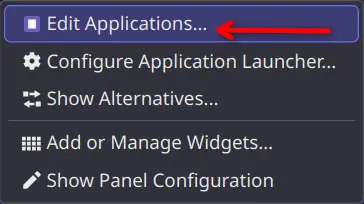
- Edit Applications
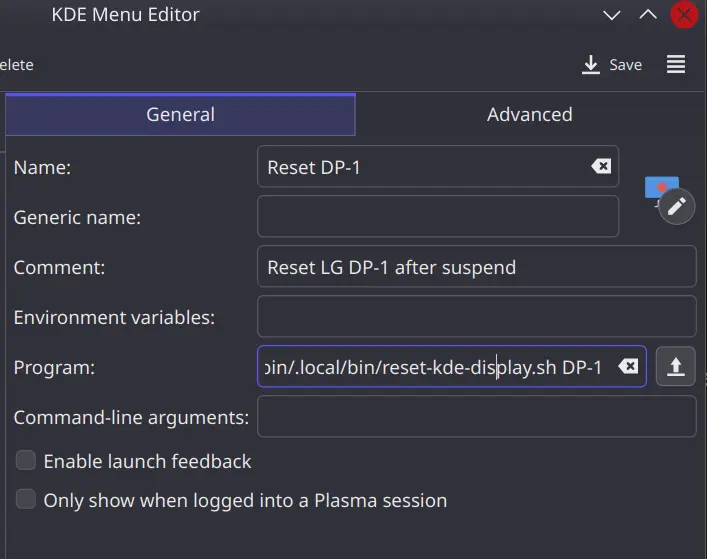
- New Item
- Command: /home/yourusername/.local/bin/reset-kde-display.sh DP-1
- Working path: /home/yourusername/.local/bin/
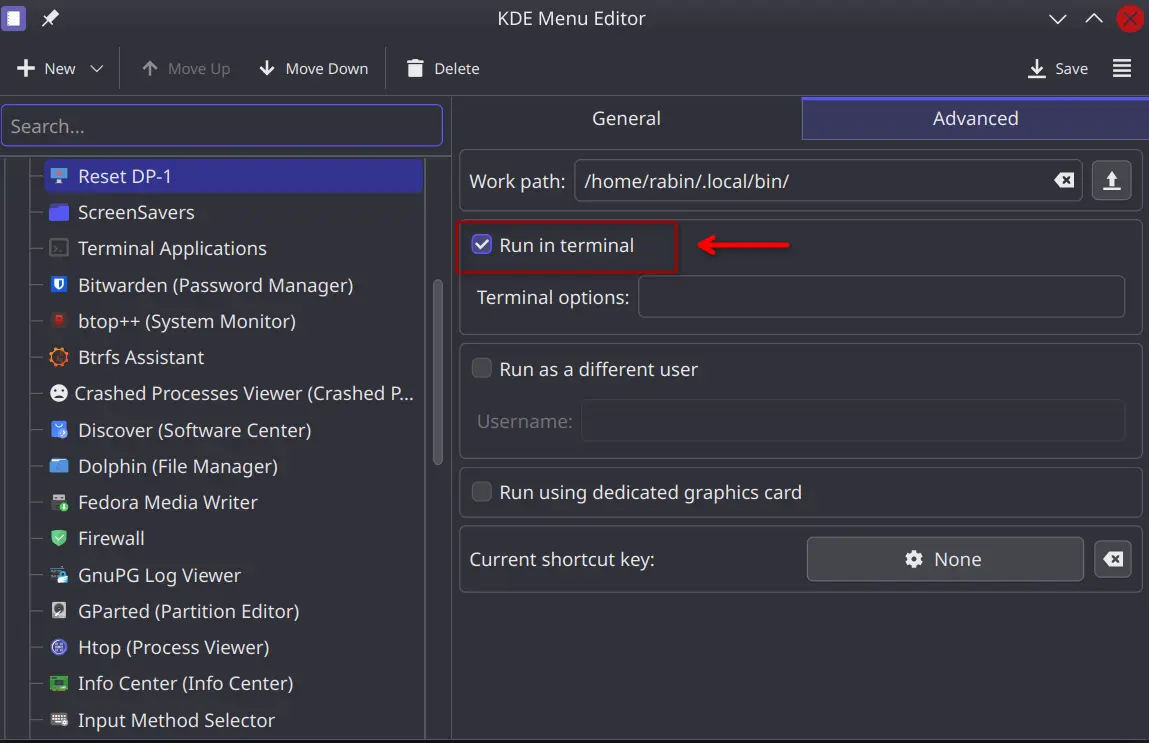
- Run in terminal: enabled
- Save
Then in the Advanced tab, you need to select the Run in terminal option:
The launcher runs:
/home/yourusername/.local/bin/reset-kde-display.sh DP-1So if the monitor desktop stops accepting mouse clicks after sleep, I can reset it without opening Display Settings.
Is this Fedora specific?
I do not think so.
My case happened on Fedora KDE 44 with Plasma 6.7.4 and NVIDIA, but when I searched online, it seems, the behavior is around KDE Plasma / Wayland display state after resume.
Similar multi-monitor, pointer and resume problems have also been reported outside Fedora.
So I am treating this as a KDE Plasma Wayland workaround, not really a Fedora-specific fix.
The script itself only depends on KDE’s kscreen-doctor plus common Linux command line tools.
Important note
This is a workaround, not a proper fix for the underlying Plasma/KWin issue.
The script intentionally disables the display for two seconds and enables it again. Windows on that monitor may move while it is disconnected.
I also prefer keeping this manual instead of automatically running it after every resume. Resume is already at the point where the display state becomes confused, so firing another display reset automatically at exactly the same time could create another race.
Maintaining the script
For a small single-file tool like this, a GitHub Gist is enough.
This issue though, led me to explore NixOS and I started to like the structure and control of it. That is Why I moved my Linux workstation from Fedora to NixOS.
I usually keep:
- the Gist as the latest/canonical source for the script;
- the full script inside this note so the fix still works even if an external link disappears;
- version numbers in the script changelog whenever behavior changes.
If this later grows into automatic resume handling, installer/uninstaller logic, distro-specific handling or multiple scripts, then it is worth moving to a normal GitHub repository. Have not reached that point yet.