I hit one of those Linux desktop annoyances where everything looks fine until startup, and then the keyring decides it wants a password before it will behave.
This was on a machine that auto-logs in and is meant to stay out of the way. So having the keyring stop and ask for a password at boot was just noise. Useful noise, maybe, on a laptop. Not here. I automate things on this machine, it is a headless machine. I have monitoring scripts that rely on proper login to be automated. This keyring issue disrupts the process and it was very annoying.
What I ended up doing
The practical fix was to set the Login keyring password to blank so it unlocks automatically.
Open Passwords and Keys. On Linux Mint it may also show up as Seahorse.
If it is missing:
sudo apt update
sudo apt install seahorse
Then:
- Open Passwords and Keys.
- Find Login or Default Keyring under Passwords.
- Right-click it.
- Choose Change Password.
- Enter the current keyring password.
- Leave the new password fields empty.
- Accept the warning about storing secrets without encryption.
If both Login and Default Keyring exist, I would reset both the same way. Otherwise you can still end up with one of them complaining later, because of course there are two places for the same annoyance to live.
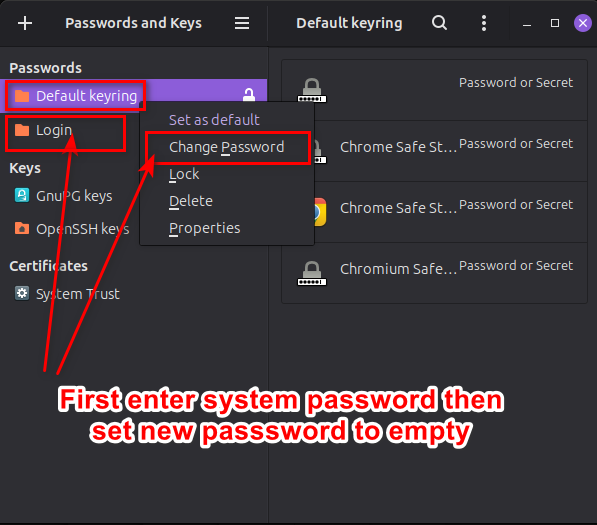
Then reboot and let the desktop auto-login normally.
What is the trade-off?
A blank keyring password means stored secrets are no longer protected by a separate encrypted password. That is the part that makes this feel a little gross, and it should.
But for an unattended desktop that already auto-logins, that trade-off is often the point. If the machine is meant to start on its own, the keyring asking for manual intervention is basically the opposite of the goal.
Do not do this on a shared machine or on a laptop full of important browser passwords.
If the password change refuses your system password
Sometimes the keyring password and the Linux account password have drifted apart. That happens after password changes or a messy login reset.
Before nuking anything, back up the old keyring files:
mkdir -p "$HOME/keyring-backup"
cp -a "$HOME/.local/share/keyrings/." "$HOME/keyring-backup/"
Then reset the keyring:
rm -f "$HOME/.local/share/keyrings/login.keyring"
rm -f "$HOME/.local/share/keyrings/default"
rm -f "$HOME/.local/share/keyrings/user.keystore"
Reboot. If an app offers to create a new keyring, set it up with a blank password.
That does mean anything stored in the old keyring is gone, so browsers and desktop apps may ask you to sign in again. Slightly annoying. Still better than a startup prompt forever.
One other thing worth trying
I’ve also seen Linux Mint login issues that looked like a startup race rather than a real password problem. In that case, adding a tiny delay to automatic login can help:
- Open Login Window.
- Go to Users.
- Keep automatic login enabled.
- Set the automatic login delay to 1 second.
- Reboot.
That is less direct than the blank-keyring fix, but it may be enough if the prompt is really just timing nonsense after an update.
What not to do
Do not uninstall gnome-keyring. A bunch of desktop apps expect its Secret Service interface to exist.
And do not get clever with scripts that feed your Linux password into gnome-keyring-daemon. That just moves the password into a script or environment variable, which is the kind of workaround that looks smart for about twelve seconds.
For this kind of desktop annoyance, the order is usually:
- Try a 1-second automatic-login delay.
- If the prompt still shows up, set the keyring password to blank.
- Only reset the keyring when the current password cannot be changed.